Install Youtube TV on Amazon Firestick – Step By Step Guide 2024
In this post, we will illustrate all the methods and steps of how to install YouTube TV on Amazon FireStick so that you can learn how to install YouTube TV on Firestick on your own. These installation methods work on all Fire TV devices, including Firestick 4k and Fire TV Cube.
In 2018 Amazon removed the YouTube TV app due to a falling out between Google and Amazon. Recently, Amazon announced that YouTube TV is now available. It is a very happy moment that the YouTube TV Firestick app is officially available in the Amazon App Store. You can install the YouTube TV app and use it anywhere in the United States.
How To Install YouTube TV On Amazon FireStick Officially From Amazon App Store
The wait for installing the YouTube TV App on Firestick had been awaited for a long time by YouTube TV users which is now finally over. YouTube TV is the live TV segment on YouTube. It allows you to access a range of satellite channels including sports channels like ESPN, Fox Sports 1 & 2, Big Ten Network, CBS Sports Network, MLB Network, NBCSN, the SEC Network, NBA TV, and regional sports networks.
Here we take you through all the steps to install the YouTube TV app on Fire Stick officially through the Amazon App Store.
YouTube TV Firestick/Fire TV Installation Guide
Step 1. Open the FireStick/ FireTV menu and click on the Search Icon available in the left corner.
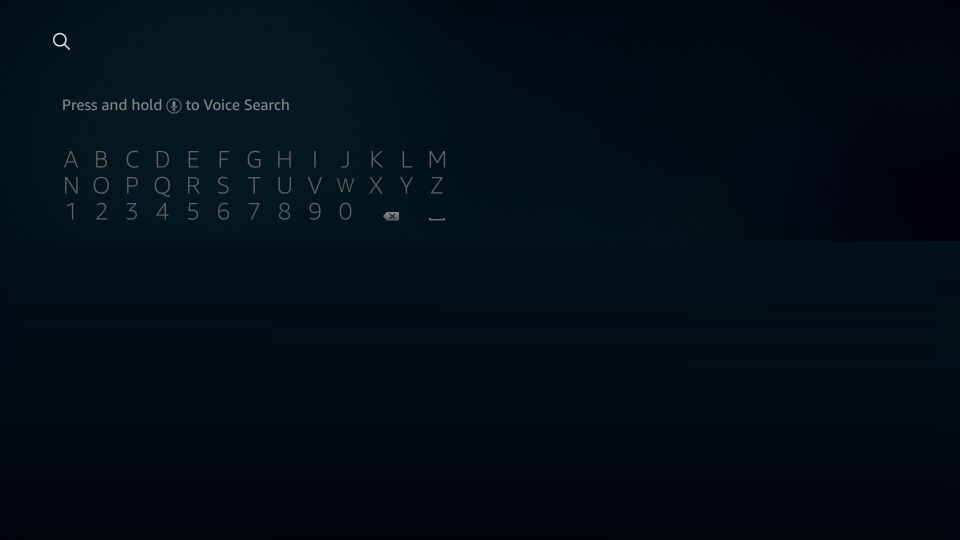
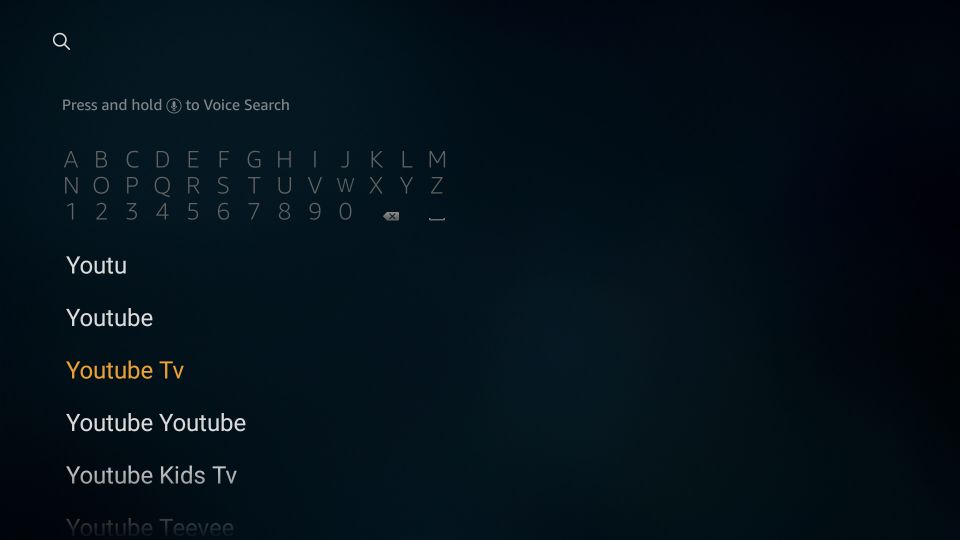
Step 2. Enter YouTube TV in the search bar and click on YouTube TV when the search results appear.
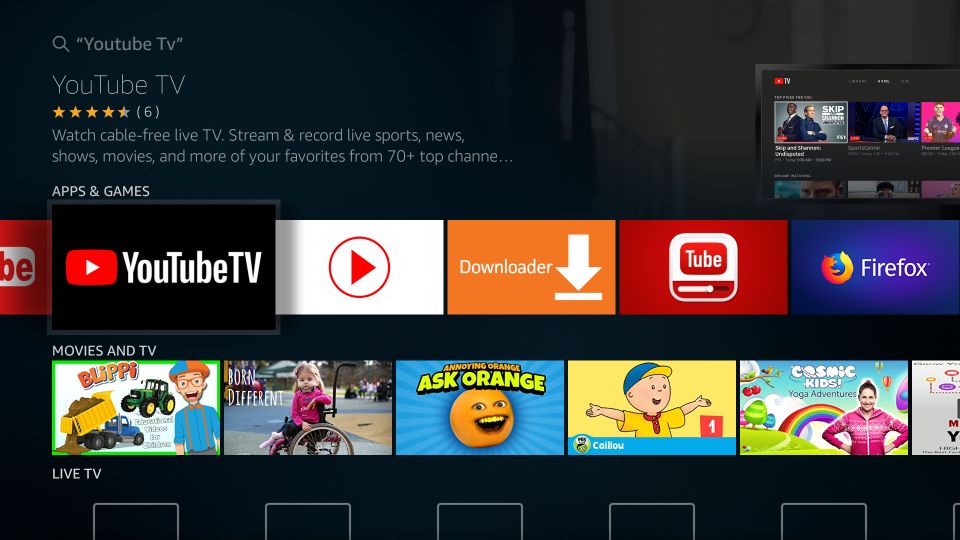
Step 3. Click on the YouTube TV app once it appears on your screen. You may have to scroll right to find the YouTube TV app.
Step 4. Click on Get to download the app.
If you have downloaded and installed the app already then you will see a download button instead of Get.
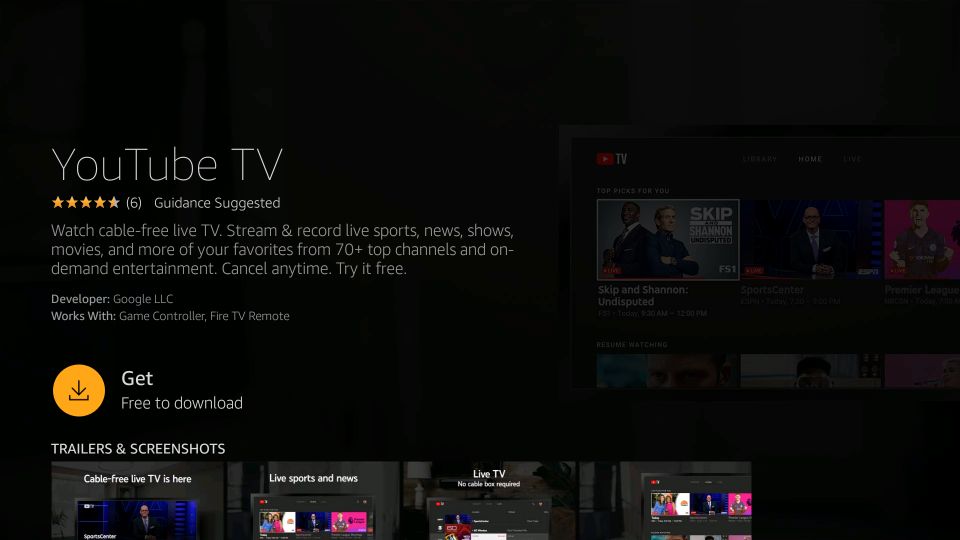
Step 5. Wait till the application gets downloaded.
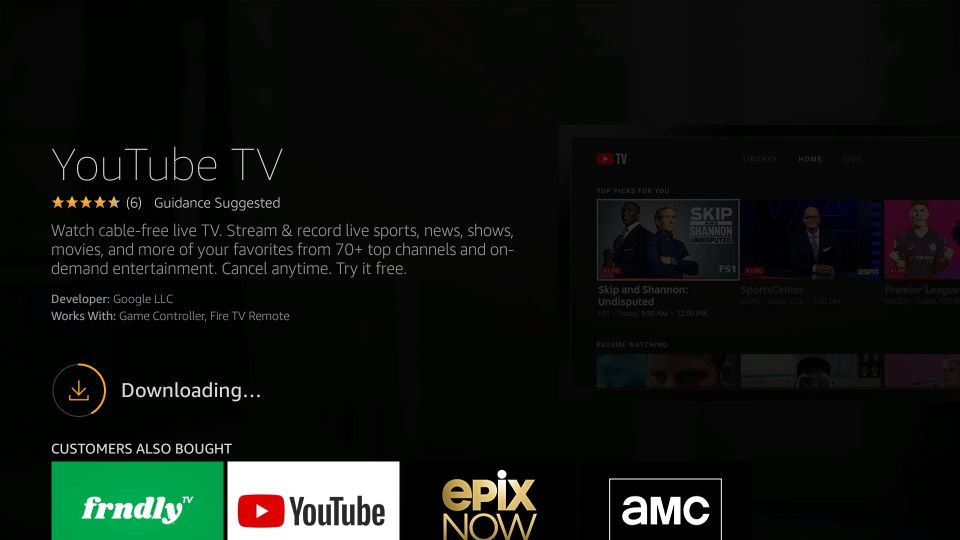
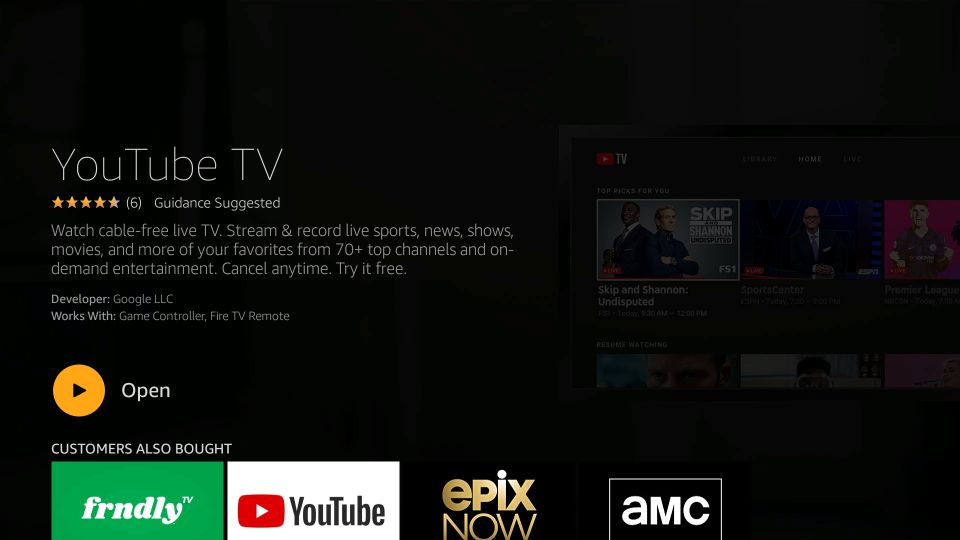
Step 6. Click on the back button on your TV remote until you return to the home screen.
Step 7. On the home screen, go over YouTube TV and hold down the Options button, then click Move.
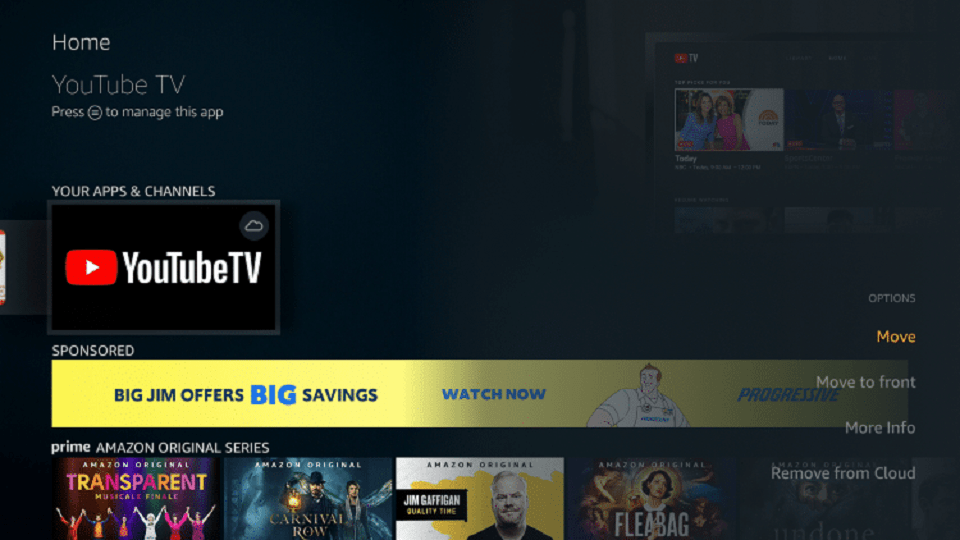
Step 8. On Your Apps & Channels screen, move YouTube TV to the front.
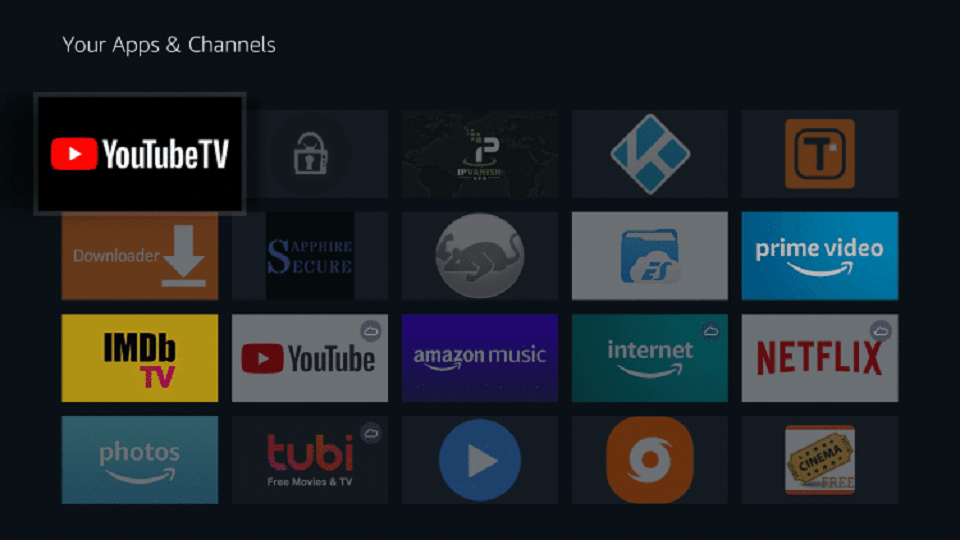
Step 9. Click on the YouTube TV app to run.
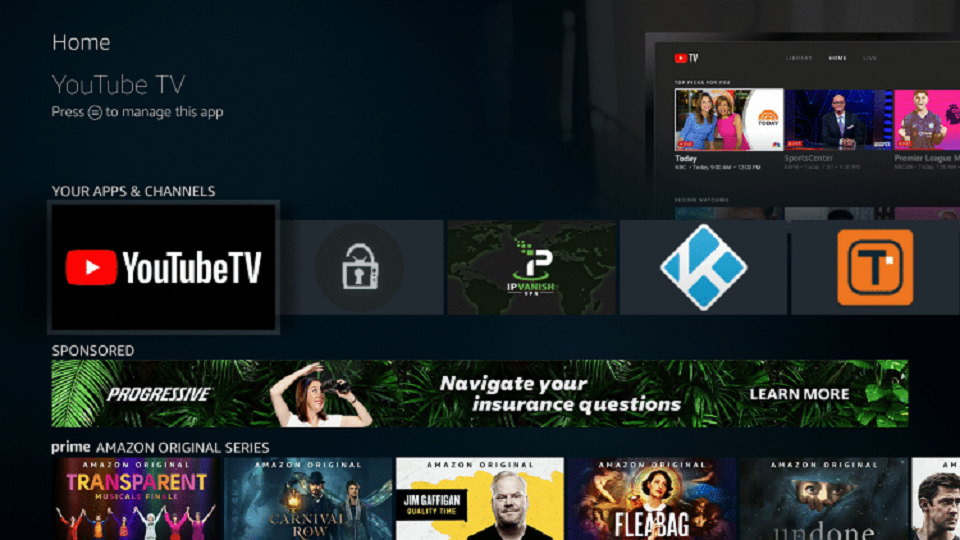
Step 10. YouTube TV is now successfully installed on your Firestick. You can access it by just signing in to an existing account or start with a free trial.
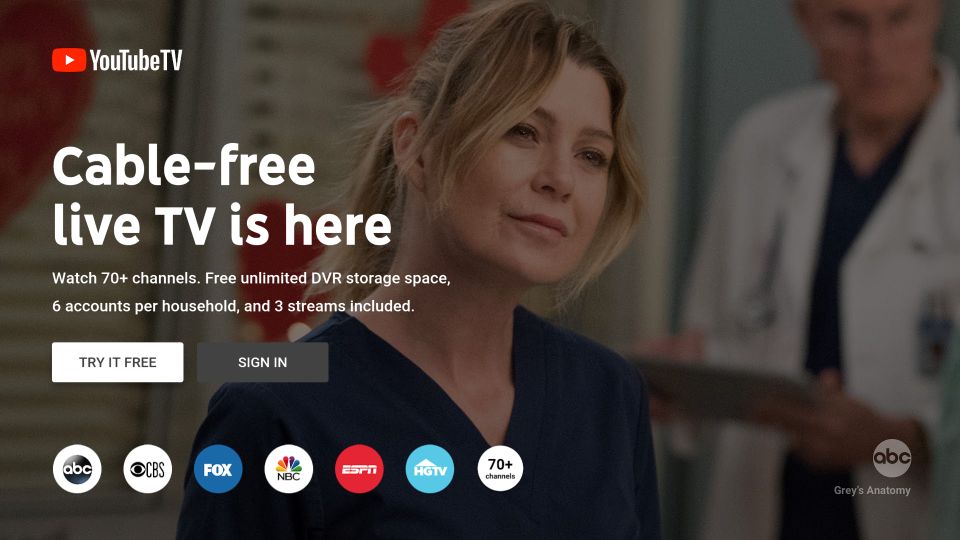
Signing Up For An Account On YouTube TV.
Creating an account on YouTube TV app is quick and simple, giving you instant access to live channels, on-demand shows, and personalized viewing options. With just a few steps, you can set up your profile, choose your plan, and start streaming your favorite content across devices. Enjoy flexible entertainment without contracts and customize your viewing experience effortlessly.